


Clicking around with your mouse, entering fields with your keyboard, watching videos, listening to podcasts: being able to do these things online is not a given for everyone. Due to disabilities, some people need assistive tools to use a website. By implementing accessibility features, you ensure that your site is accessible to everyone.
Let me start with a confession: as a software developer, I haven’t always considered the accessibility of my websites. There is certainly room for improvement in my sites and web applications.
In this blog post, I will provide an introduction to this topic for (web) developers. I won’t cover all the ins and outs, only the parts that I have found to be the most important and beneficial. For more detailed information, MDN, W3C, and A11Y are great resources to start with.
Why Optimize Your Website?
As I mentioned in the introduction, using a website is not equally easy for everyone. Website accessibility optimizations are especially important for people with:
- Physical disabilities: This may prevent them from using a keyboard or mouse effectively.
- Intellectual or cognitive disabilities: This may make it difficult to process information.
- Sensory impairments: Such as blindness or deafness.
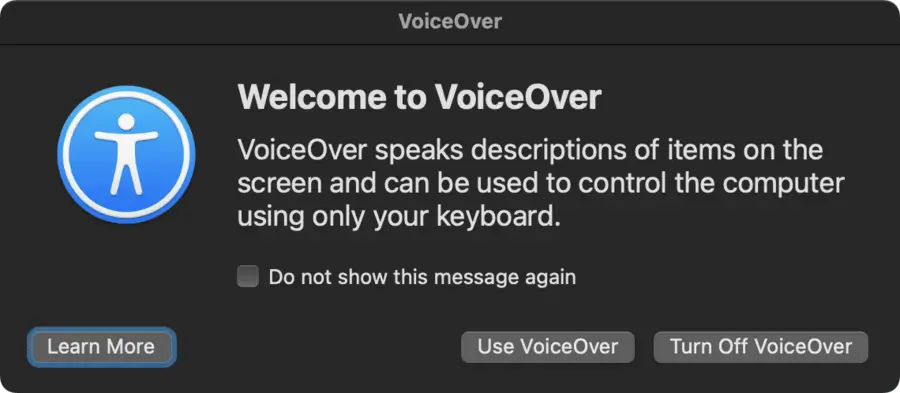
Someone with a disability may use an assistive tool to navigate a website. For example, a blind person might use a screen reader to have text read aloud. Or someone who cannot use a mouse for any reason might navigate your website using only the keyboard.
Optimizing your site also means making it easier for these tools to understand your website. The ultimate goal is that everyone should be able to use your website in the same way, regardless of any disability they might have.
How to Make a Website More Accessible
Now for the technical part: how do you optimize your website for accessibility tools? In the following sections, I’ll explain the most important methods.
Semantic HTML
The most basic technique to apply is using semantic HTML. What does that mean? Simply using the most appropriate HTML
element. So, a <button> for buttons, a <nav> for navigation, a <footer> for the footer section, etc. And not using
a <div> for navigation, for example.
For buttons and input fields, this also provides built-in accessibility features. For example, using the tab key to focus on a field or button, or pressing enter to click a button.
HTML
 HTML
HTML1<!-- Non-semantic button: -->
2<span className="..." onClick="...">
3 Non-semantic button
4</span>
5
6<!-- Semantic button: -->
7<button className="..." onClick="...">
8 Semantic button
9</button>CSS Code
In addition to semantic HTML, your site should have a logical visual layout. This also includes interactive elements
that follow general style conventions. For example, a button’s background color changing when hovered (:hover), or
focusable elements (:focus).
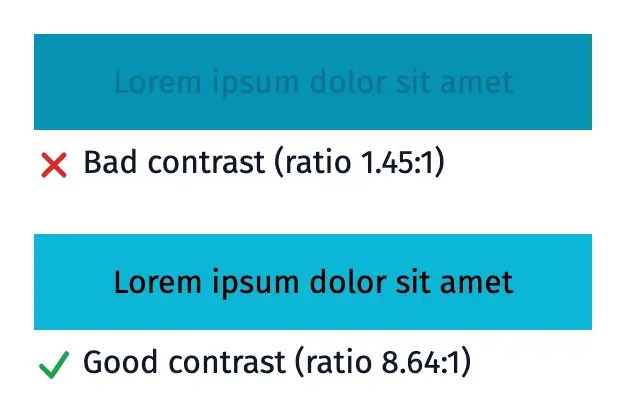
Another important aspect is color usage (such as sufficient contrast), text sizes, and whitespace.
JavaScript
In general, resources like MDN recommend using JavaScript sparingly and relying on semantic HTML as much as possible. However, sometimes you can’t avoid JavaScript, such as when building a React SPA (single-page application) or performing client-side form validation. The latter is known as unobtrusive JavaScript.
This allows your website to be dynamic without requiring a full page reload. However, tools like screen readers may not always recognize these updates. To inform such tools of dynamic updates, you can use WAI-ARIA attributes.
WAI-ARIA
For complex web pages with dynamic content, such as SPAs, it’s not always possible to rely solely on semantic HTML. This can create problems where assistive technologies, such as screen readers, struggle to understand the structure of your webpage.
WAI-ARIA offers a solution. The Web Accessibility Initiative Accessible Rich Internet Applications standard specifies how to enhance accessibility using additional HTML attributes. There are three categories:
- Roles: Specifies what an HTML element is or does.
- Properties: Various (mainly static) attributes that provide information about an HTML element.
- States: Indicates the current state of an HTML element. This is usually dynamic.
These attributes do not change the webpage’s appearance but provide technical information to accessibility tools. They are useful for:
- Mimicking the semantics of another HTML element. For example, using
<div role="navigation">to imitate a<nav>. - Indicating dynamic updates.
- Assigning keyboard accessibility to an element that does not have built-in support (
tabindex). - Adding semantics to a custom UI component to clarify its function.
HTML
1<!-- Example of tab-component with ARIA-roles: -->
2<div>
3    <div role="tablist">
4        <button role="tab">Tab 1</button>
5        <button role="tab">Tab 2</button>
6    </div>
7
8    <div role="tabpanel">
9        Contents tab 1
10    </div>
11
12    <div role="tabpanel">
13        Contents tab 2
14    </div>
15</div>
For a full list of ARIA attributes, check the Mozilla documentation or W3C specifications.
Audio and Video
Depending on your browser, built-in video and audio players may not be fully accessible. For example, it may not always be possible to pause or rewind using the keyboard. In such cases, you can use JavaScript to add an extra layer of functionality.
Additionally, you can add subtitles to videos. This is useful not only for the hearing impaired but also for users who cannot play audio or are in a noisy environment.
For audio content, consider providing a transcript.
Language Usage
A non-technical way to improve accessibility is optimizing your text for your target audience.
You can improve your text by:
- Using clear language.
- Avoiding unnecessary complexity.
- Avoiding abbreviations or symbols that screen readers may not pronounce correctly. For example, replacing "Page 1-7" with "Page 1 to 7".
- If abbreviations are necessary, spell them out the first time and use the
<abbr>HTML tag thereafter. - Using unique button texts so accessibility tools can differentiate them.
Testing Your Website’s Accessibility
Some ways to check your site’s accessibility include:
- Disabling CSS: Checking whether your page remains logically structured without CSS.
- Checking color contrast: Ensuring text remains readable with sufficient contrast. Tools like WebAIM’s Color Contrast Checker can help.
- Auditing tools: Using external tools such as Wave or Deque Axe.
- Testing yourself: Trying assistive tools like JAWS, ChromeVox, and VoiceOver.
- User testing: If possible, testing with real users from your target audience.
Conclusion
By implementing accessibility features, you ensure your website is usable for everyone. Additionally, you gain benefits like improved SEO and a more robust design.
The goal is that everyone should be able to interact with your website in the same way, regardless of any disability.
For further reading, check out:


