


In this blog post, I introduce you to Strapi, a headless CMS. We'll build a local blog site with a Strapi backend and Next.js frontend. The focus will primarily be on Strapi and the data integration. In essence, the frontend is secondary for this blog post.
The end result will be a simple site with:
- Homepage with pagination & filter
- Blog post page
- About us page
All dynamic data will be fetched by our Next.js server from Strapi:
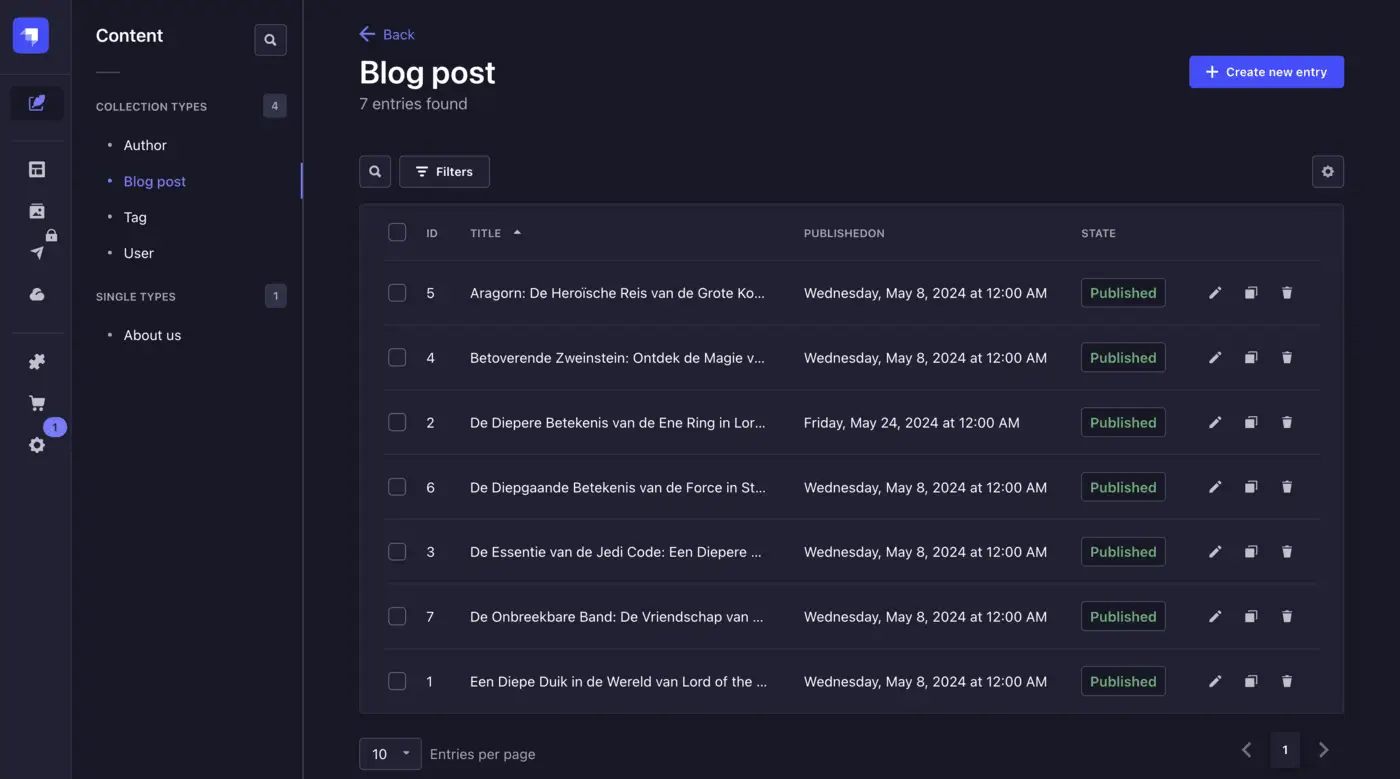
Before we start, it's useful to know what Strapi is and why it's used.
About Strapi
In short, Strapi is an open-source headless CMS solution. You can store and manage data used in your applications from your Strapi dashboard. With the Strapi API, you can perform CRUD operations, among other things.

Strapi is suitable to use for:
- Static websites
- Mobile applications
- Business websites
- E-commerce
- Editorial sites
In this blog post, we're using it for an editorial site—a blog website.
Why Use Strapi?
Some reasons and benefits of using Strapi include:
- Fast (initial) launch: You don't need to develop a backend application yourself, such as with Spring Framework. This saves time and money. Because it saves time, you can go live faster.
- Flexibility: You can define and adjust your own data structures.
- Integration: Strapi is headless, so you need to build and connect the frontend solution yourself. You're free to choose your own frontend techniques, such as Next.js, Vue.js, or anything else.
- Quick to learn: Strapi provides an admin panel where you can manage your content and settings. The interface is fairly intuitive and not overly complex.
- Separation of development & content management: With all-in-one solutions like WordPress, developers and content managers work in the same system. This can lead to situations where they get in each other's way. By separating the frontend from the CMS, you can somewhat avoid this. A developer can work on the frontend without affecting the content managers.
Components of Strapi
Strapi consists of three components: development, users, and deployment. These components will be covered in more depth in the next section, but first, a brief description.
Development
If you're reading this, this is probably the most interesting part to you. The development component involves setting up and running your Strapi application.
Users
The users component relates to the Strapi admin panel. From this panel, content managers can add and manage content.
Deployment
The deployment component, which technically falls under development, pertains to running your application online. You can self-host Strapi or use the cloud service.
Getting Started with Strapi
We'll now go step-by-step through setting up a Strapi application and integrating it into a Next.js website.
All basic components of Strapi will be addressed. Note that Strapi can also be highly extensive, so there's much more than what's covered in this blog post.
Requirements to Follow Along
If you want to follow these steps, I assume you meet the following requirements:
- You have general programming knowledge (e.g., with Javascript, Typescript, Node.js)
- You have knowledge of RESTful API principles
- You know your way around NPM (or Yarn) & the terminal
Setting Up Strapi Headless CMS
In this section, we'll set up a Strapi application and add data to our CMS. To do this, we'll follow these steps:
- Set up the database
- Install the Strapi application
- Add the first administrator
- Add content types
- Add administrators
- Add initial data via the CMS
Creating a Database
Strapi needs a database to store data. In my case, I choose to store it in a PostgreSQL database. So, I first create a
database locally on my machine called strapi-blog-db.
You don't necessarily have to use a PostgreSQL database. It can also be a MySQL, MariaDB, or SQLite database (as of the writing of this blog post).
Setting Up the Strapi Application
Now we can actually get started with Strapi. Let's create the application.
Installation
From the terminal, I run the installation script. Since I prefer to use Typescript, I add the flag for
it (--typescript):
Bash (/terminal)
 Bash (/terminal)
1npx create-strapi-app@latest strapi-blog --typescript
2# Need to install the following packages:
3# create-strapi-app@4.24.1
4# Ok to proceed? (y) y
5# ? Choose your installation type Custom (manual settings)
6# ? Choose your default database client postgres
7# ? Database name: strapi-blog-db
8# ? Host: 127.0.0.1
9# ? Port: 5432
10# ? Username: nyef
11# ? Password:
12# ? Enable SSL connection: No
13#
14# Creating a project with custom database options.
15# Creating a new Strapi application at /Users/nyef/Repositories/strapi-nextjs-blog-tutorial/strapi-blog.
16# Creating files.The latest version of Strapi is 4.24.1., at the time of writing this blog post
You can also choose to add --quickstart, but then you can't select a database (defaults to SQLite). See the
documentation for all installation CLI options.
I encountered an error, by the way. In my case, it tried to run yarn install while I use npm. So, I had to manually
run npm install.
If everything went well, you now have a folder named after your project—in my case, strapi-blog. Inside it, you'll
find all the folders and files of your Strapi project.
Starting
You can now start the application with npm run develop or npm run start. The latter is meant for starting in
production. The main difference is that strapi develop has autoReload and the content-type builder (more on that
later) enabled (see docs).
Adding an Administrator
Once you've started the application, you'll land on a registration page. There, you create the first administrator account.
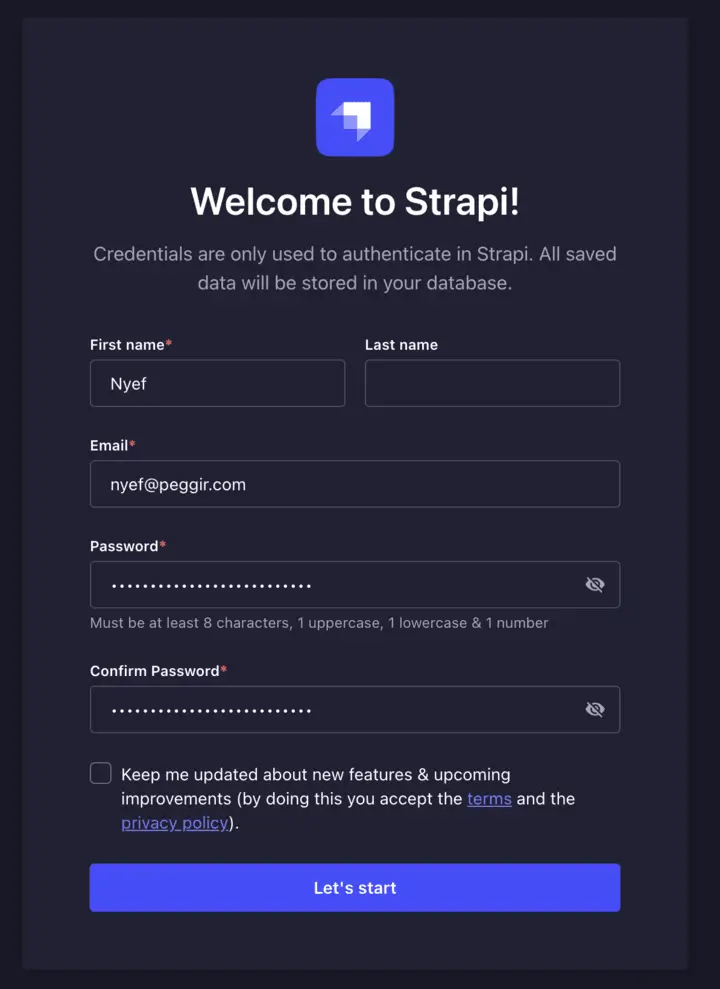
As an admin, you get access to the Strapi admin panel. You can add more administrators later. An administrator can manage content. Strapi uses a permissions system, which allows you to specify what each admin can and may do—more on that shortly.
The first admin is a so-called Super Admin. This admin can, among other things, manage all plugins and users. One of those plugins is the Content-type Builder.
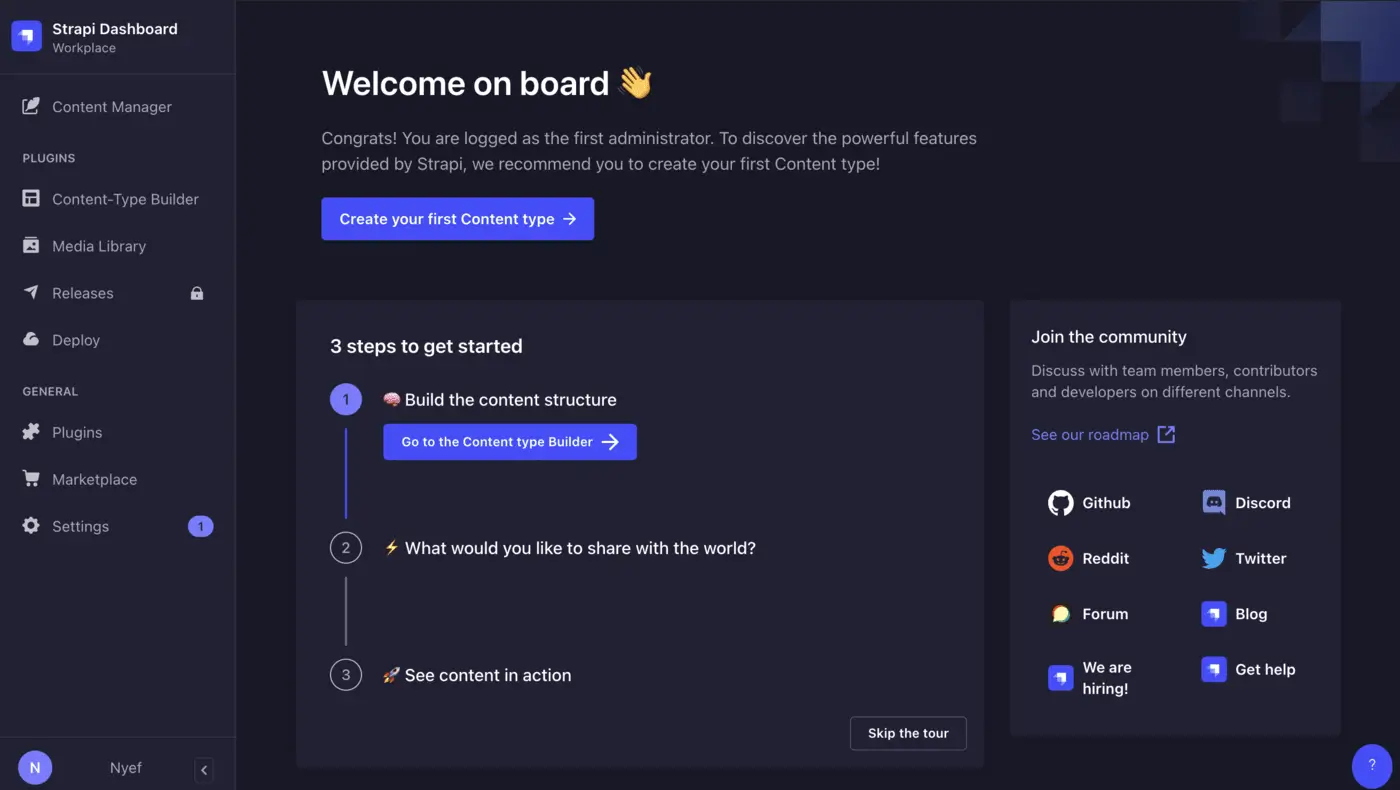
Content-type Builder
The content-type builder is the core plugin of Strapi. But what is a content type in Strapi?
As you now know, Strapi is a content management system (CMS). In other words, a system where you create and edit content for your application or website. Content can be anything—a blog post, product, a piece of text on the homepage, or a link in the footer; whatever you'd like it to be. And because you're free to decide, you need to define it yourself. That's where the content-type builder comes in.
A content type is similar to an entity in JPA or a Typescript type. Every content type has at least a name and some fields.
Strapi has three types of content types:
- Collection: A content type that can have multiple instances. Think of a product or blog post, for example.
- Single: A content type with only one instance. For example, an “About me” text.
- Component: A content type reused within collection or single types. For instance, SEO metadata linked to both a blog post and the “About me” page.
A content type itself can only be managed by an admin. Note that you can only do this if you've started the application
in dev mode (npm run develop).
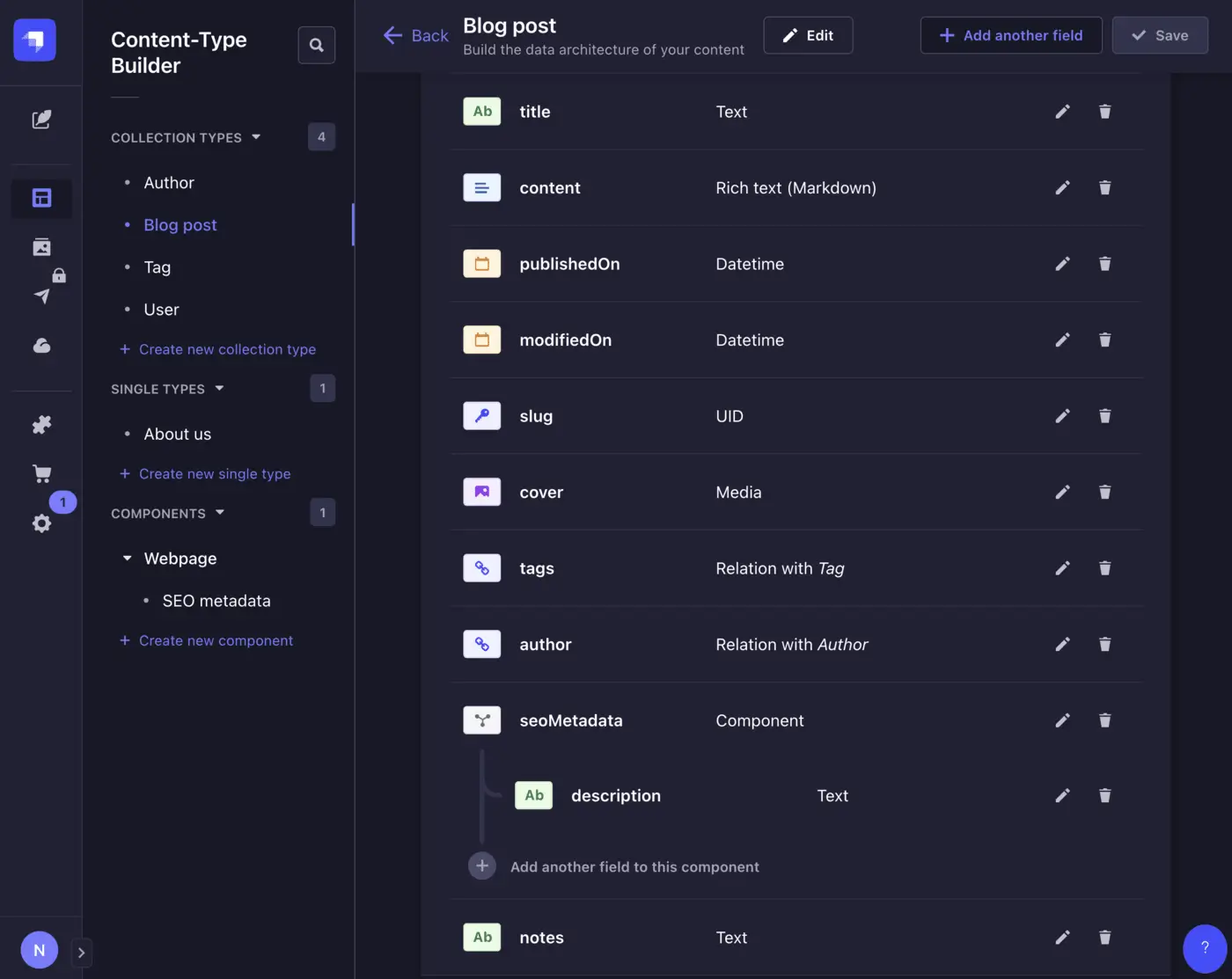
Let's now create some content types for our project. From your admin dashboard, go to "Content-Type Builder". You'll already see one collection type: User. We'll leave that for now.
For our example project, we'll create the following content types (for all fields, you need to indicate via Advanced Settings that it's a Required field, unless I specify otherwise below):
Component-type named "SEO metadata":
| Field type | Name | Comment |
|---|---|---|
| Text field (long) | description |
Single-type named "About us":
| Field type | Name | Comment |
|---|---|---|
| Text field (short) | title | |
| Text field (long) | description | |
| Component | seoMetadata | Pick Existing -> SEO metadata -> Single. |
Collection-type named "Author":
| Field type | Name | Comment |
|---|---|---|
| Text field (short) | name | |
| Text field (long) | biography | |
| Media field (single) | avatar | In Advanced settings we leave Required field disabled, so it is not mandatory. Select only Images at allowed types. |
Collection-type named "Tag":
| Field type | Name | Comment |
|---|---|---|
| Text field (short) | name | |
| Text field (long) | description | |
| Text field (short) | accentColor | Enter pattern via Advanced settings > RegExp: ^#([A-Fa-f0-9]{6,8}|[A-Fa-f0-9]{3})$ for HEX-color values. |
| Media field (single) | icon | In Advanced settings, select only Images as allowed types. |
| Relation | blog_posts | A many-to-many relationship between Tag and Blog Post (after creating the Blog post content-type). |
Component-type named "Blog post":
| Field type | Name | Comment |
|---|---|---|
| Text field (short) | title | Via Advanced settings, select Unique field. |
| Rich text (Markdown) | content | |
| Date field (datetime) | publishedOn | By default, every content type in Strapi has an internal created and last updated field. For this blogpost type, we will ignore those and use our own publishedOn and modifiedOn fields. |
| Date field (datetime) | modifiedOn | Dit hoeft géén verplicht veld te zijn. |
| Text field (long) | notes | Via Advanced settings, select Private field. This field does not have to be required either, it is meant for the author to write internal notes in. |
| UID field | slug | Attached field: title. |
| Component | seoMetadata | Pick existing -> SEO metadata -> Single. |
| Media (single) | cover | In Advanced settings, select only Images as allowed types. |
| Relation | author | Relation to one Author. |
| Relation | tags | Many-to-many relation between Blog post and Tags. |
You can also add an icon to content types. You can also set additional options via the advanced properties, such as a min. and max. number of characters per field.
Creating content types is fairly intuitive. If something doesn't work, check the Creating content-types docs.
Admin Users
For our example site, we'll pretend it's being used by a small organization. This organization has two types of employees who will edit content: an editor and an editor-in-chief. The intent is that both users can create and edit blog posts. However, only an editor-in-chief may publish or delete a blog post and manage About us. Both admins get access to the admin panel.
Before we can add admin users with specific roles, we first need to define these roles. From the admin panel, go to Settings > Administration Panel > Roles. Initially, you'll see three roles: Author, Editor, and Super Admin. The user you're currently logged in with is a Super Admin. For simplicity, we'll remove Author and Editor. Now we'll add our own organizational roles, starting with Editor-In-Chief.
Click the "Add new role" button to do this. Provide a name and description. Under the "Collection Types" tab, select everything for Author, Blog-post, and Tag. Under the "Single Types" tab, select everything for About-us. Under the Plugins tab, go to Upload and enable Access the Media Library, Create, Update, Download & Copy link. Click save.
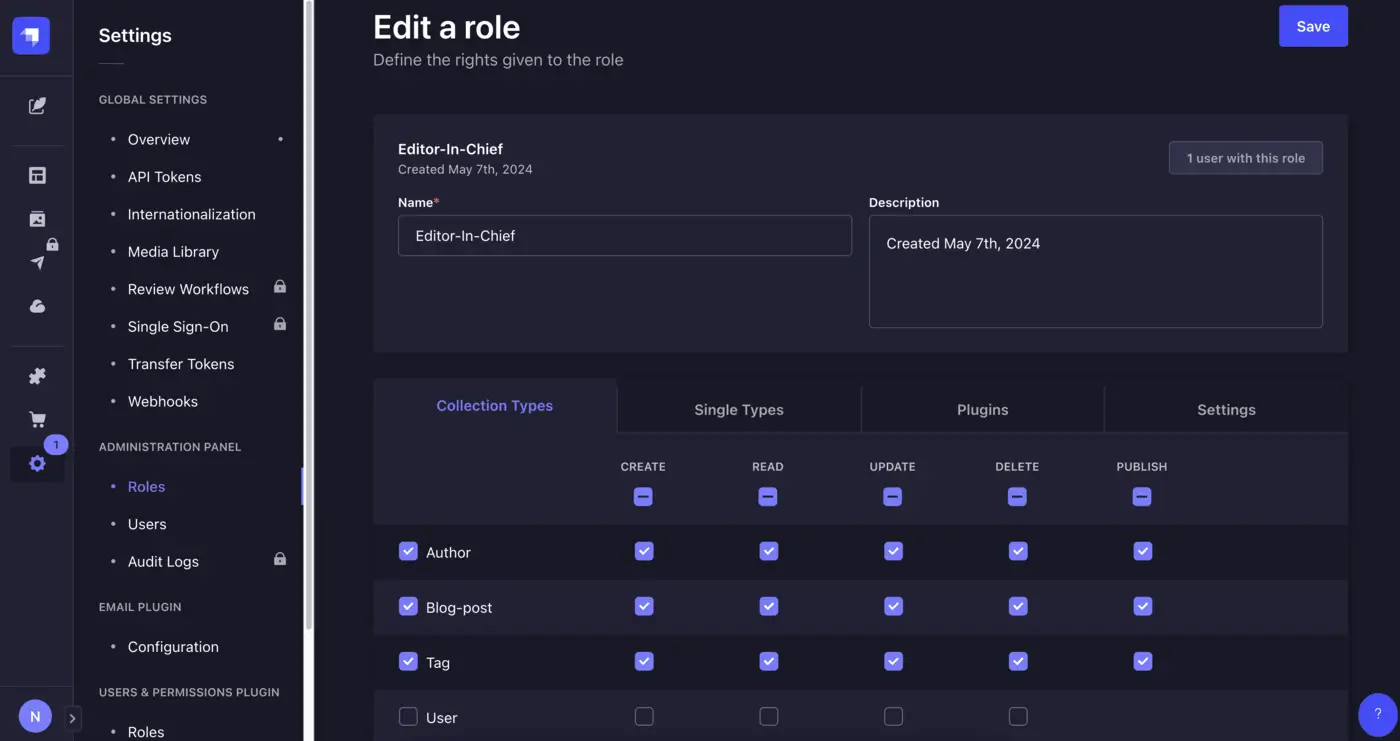
Now add another role: Editor. This role gets fewer permissions: for Author, select only read and update. For Blog post, select create, read, and update. For Tag, select read. Under the Plugins tab, go to Upload and enable Access the Media Library, Create, Update, Download & Copy link. Under the same tab, select Configure view under Content-manager. Click save.
Now we need to assign these roles to our employees Edson and Alex. Go to the page Settings > Administration Panel > Users. Here you'll find an overview of all administrator users. Let's invite Edson and Alex: Click the "Invite new user" button. For each user you add, you'll get an activation link. Through that link, the respective person can create their account.
Once the accounts are activated, you'll see this reflected in the overview.
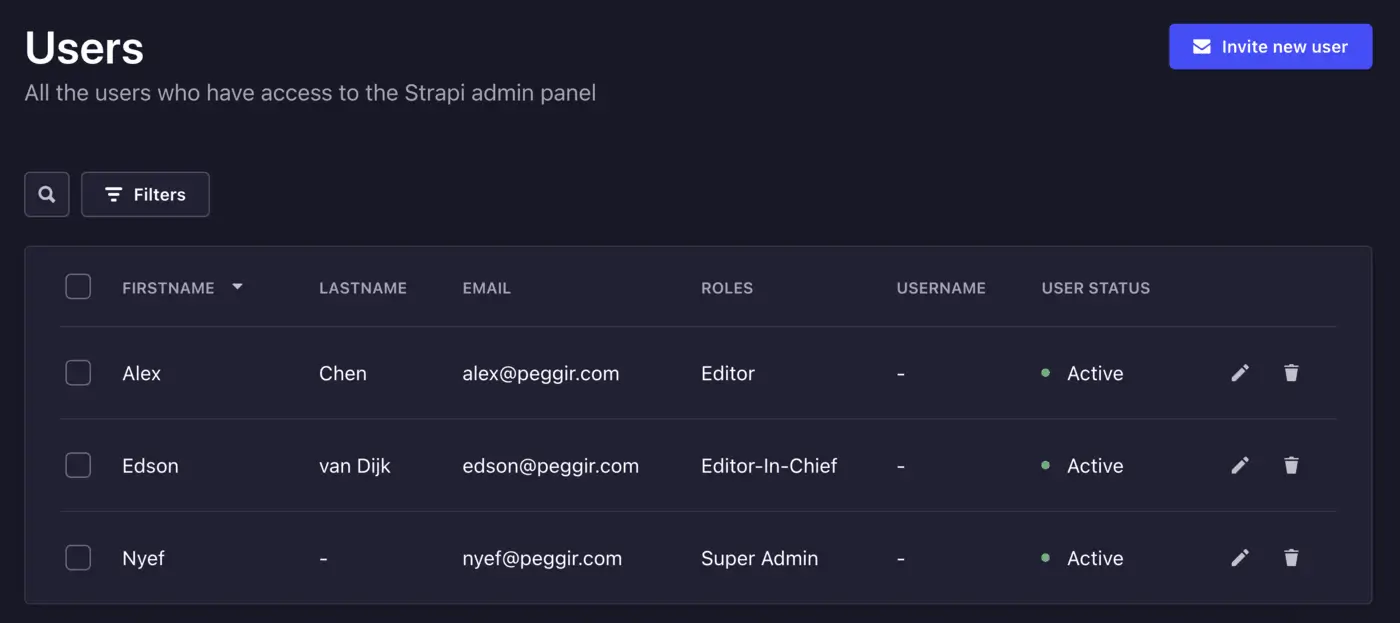
Edson & Alex can then both log into the admin panel themselves. Via their panel, they can edit the data they have access to, based on their role.
Okay, so now we have a few administrators with specific roles and relevant content types. Now our employees, Alex & Edson, can add content! At least, once they get access to the CMS application—it still needs to be running somewhere.
Deploying Strapi
If you're using the free community version, like me, you can only self-host Strapi. If you use a paid version, you can optionally use Strapi Cloud—check the Deployment docs to see what suits you best.
I don't want to dive deeper into this in this blog post. Perhaps I'll cover it in a future post. In the following steps, I'll continue using my local application.
Adding Content
In a real-life situation, Alex and Edson would have created their accounts via the activation links. For this blog post, I've done that myself.
Let's log in as Edson, our editor-in-chief, and fill in Authors, Tags, and About-us before letting Alex write blog posts.
From Edson's admin panel, you'll notice fewer options in the left menu compared to the Super Admin. Go to Content Manager > About us. Here, we see a form with the fields we need to fill in. Come up with something fun, enter it, save, and publish. There are two descriptions, by the way—one for the SEO metadata. The difference is that one is visible on the page, and the other is purely for SEO. That kind of logic is implemented in the frontend application ( Next.js).
If the form layout isn't to your liking, an admin with the right permissions can edit it via configure view. For each field, you can also change the label (e.g., to start with a capital letter) and add a description.
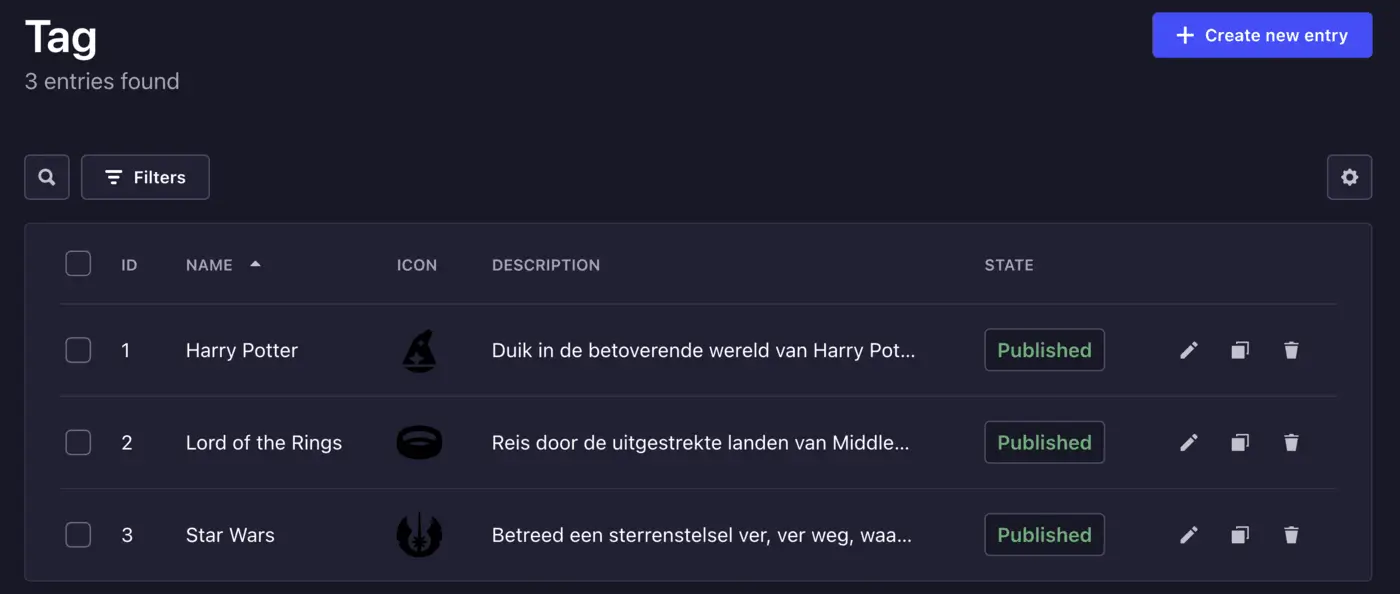
Now go to Tag and add a few, for example:
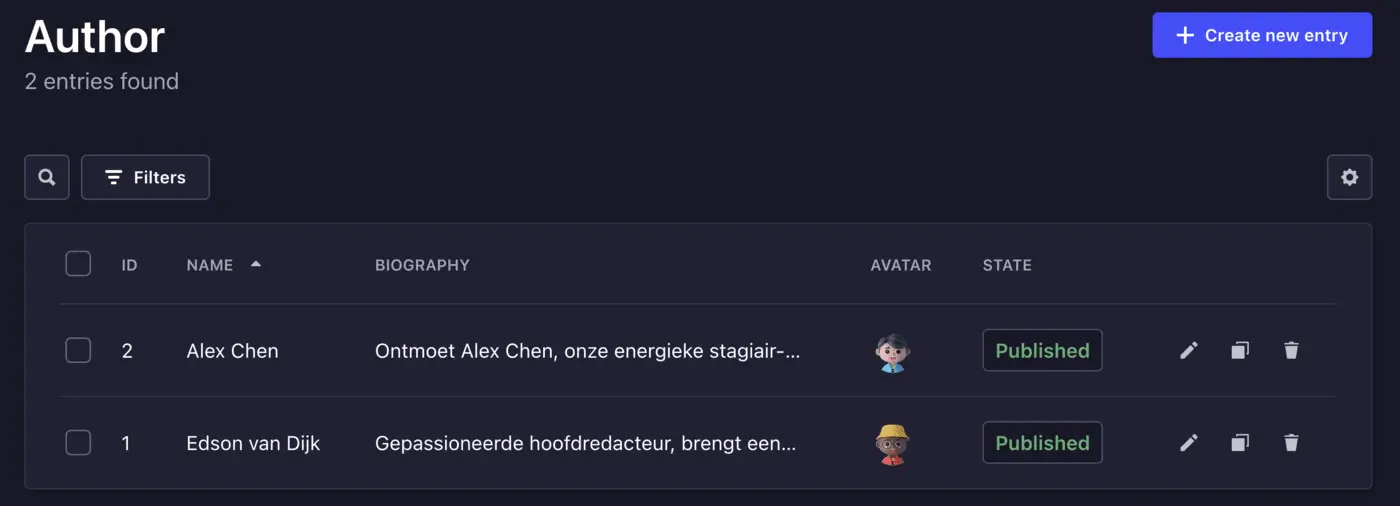
Finally, add two Authors. An author is the public profile of a blog post's writer displayed on the blog post page. So, add one for Edson and one for Alex.
With the current data in the system, Alex and Edson can now write blog posts. Let's log in as Alex and write a blog post.
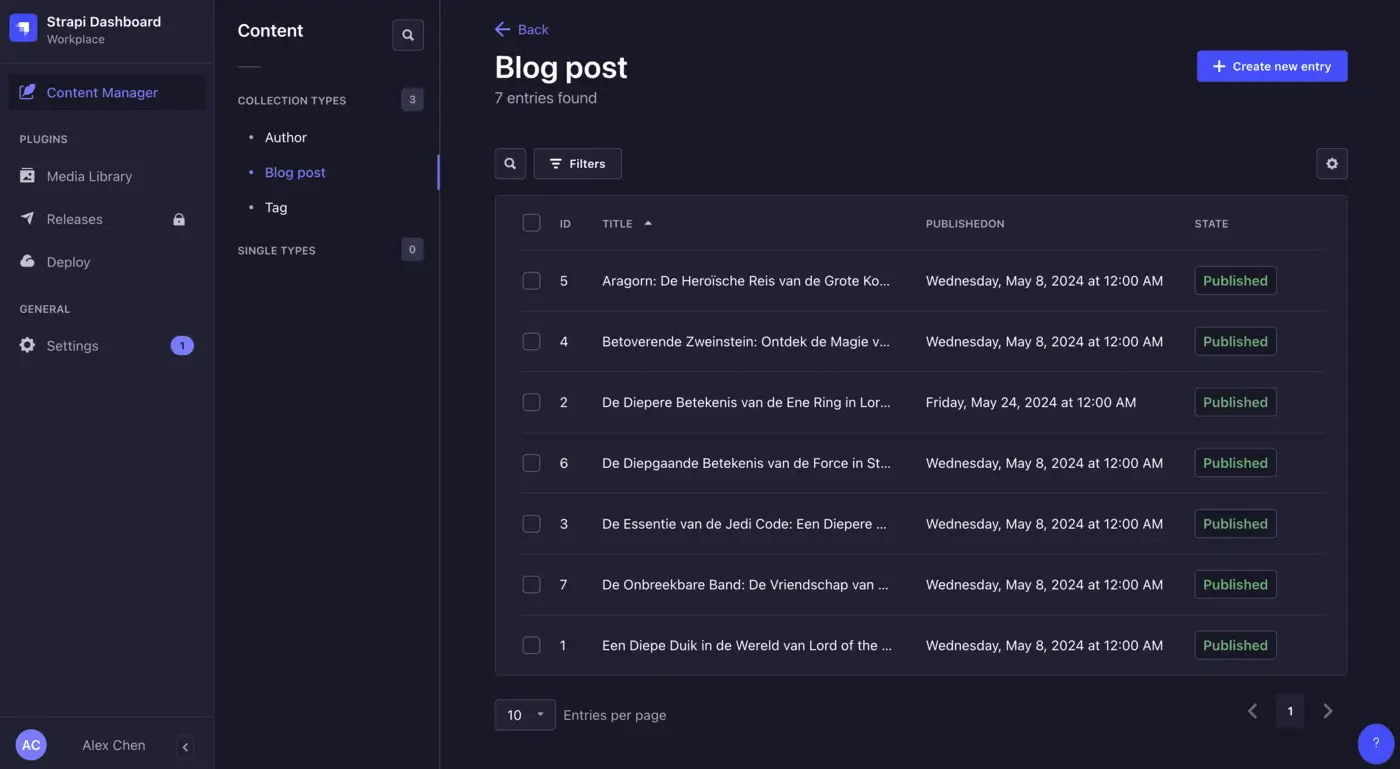
Log into Alex's admin panel and go to the "Content Manager" page. You'll see that Alex, due to the roles we assigned, can't create Authors or Tags but can create a blog post. Come up with something fun and save it.
After saving, you'll notice it's a draft, and there's no option to publish it. That's because we set it up so only Editor-In-Chiefs can do that. Log in as Edson and publish the blog post. If you want, you can add more blog posts to use in the next section.
Connecting Next.js Frontend to Strapi
Since the focus of this blog post is on Strapi and not Next.js, I've already built a simple blog site with Next.js & Tailwind CSS and uploaded it to GitHub. Download or clone the repository in case you also want to experiment or follow the steps.
Frontend Application with Mock Data
Start the Next.js application with npm run dev. Navigate to the site in localhost via the browser. Here you'll see the
blog site with placeholder data that we'll replace with Strapi data. There's a homepage with blog posts, a blog post
page, and an about us page.
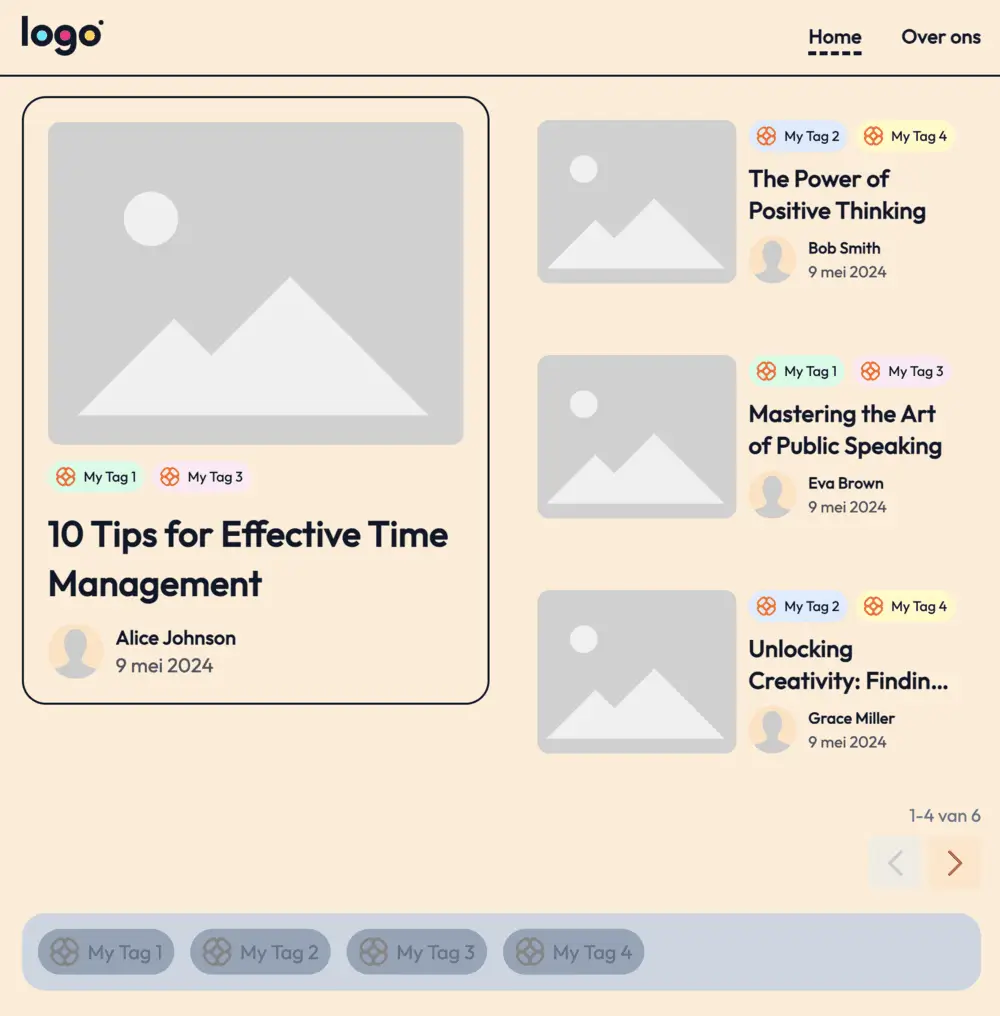
This site is designed so there's a Typescript interface for fetching data (server-side). In the file src/lib/data/data.ts, you'll find the following interface:
Typescript
 Typescript
1export interface Data {
2 getAboutUs: () => Promise<AboutUs>,
3 getAllTagsToFilterOn: () => Promise<Tag[]>,
4 getBlogPost: (slug: string) => Promise<BlogPost>,
5 getBlogPosts: (page: number, filterOnTags: string[])
6 => Promise<Page<BlogPostPreview>>,
7}In src/lib/types.js,
you'll find the Typescript type definitions. In
src/lib/data/mockData.ts,
you'll find the MockData class that implements the Data interface.
Fetching Data from Strapi
Configuration
Before we dive into implementing the Strapi connection, I'd first like to explain the configuration. There are two configuration files: .env and .env.local. The latter contains your secret data and shouldn't be added to version control.
In .env, you configure which data source the application should use. For example:
1# API-data instellen: "mock" | "strapi" | "strapi-tutorial"
2DATA_SOURCE="mock"
3
4STRAPI_BASE_URL="http://localhost:1337"
5STRAPI_API_BASE_URL="http://localhost:1337/api"
For the next step, implementation, replace mock with strapi-tutorial to use your own implementation. The other
Strapi properties don't need adjustment unless you've changed the respective Strapi defaults.
In .env.local, add one property, STRAPI_KEY, with your Strapi API key as the value:
1STRAPI_KEY="XXXXXXXX"You can generate this key via your Strapi admin panel, and it must remain a secret. That's why it's crucial to perform all Strapi API calls server-side; otherwise, end users could see and abuse your API key and endpoints.
Implementation
To ensure we fetch data from Strapi to display, we'll create a new Data implementation. In
src/lib/data/strapiDataTutorial.ts,
I've already added an empty class. We need to implement the methods by fetching Strapi data via the API. Use
the REST API reference from Strapi for help.
Want to try it yourself? Then implement all the methods on your own. If you get stuck, keep reading for a sample
implementation
of getBlogPosts: (pageSize: number, page: number, filterOnTags: string[]) => Promise<Page<BlogPostPreview>>.
Implementation of getBlogPosts
The getBlogPosts method is called from the homepage. This function fetches all blog posts based on pagination and tag
filters. First, we prepare an HTTP GET request. The base URL is as follows:
Typescript
1const url: URL = new URL(`${process.env.STRAPI_API_BASE_URL}/blog-posts`);This fetches blog posts with all attributes using the default pagination (25 items per page). For example:
1// HTTP-GET http://localhost:1337/api/blog-posts
2// Result:
3
4{
5  "data": [
6    {
7      "id": 7,
8      "attributes": {
9        "title": "...",
10        "content": "...",
11        "slug": "...",
12        "createdAt": "2024-05-08T09:51:33.440Z",
13        "updatedAt": "2024-05-08T09:51:33.440Z",
14        "publishedAt": "2024-05-15T10:17:15.674Z",
15        "modifiedOn": "2024-05-07T22:00:00.000Z",
16        "publishedOn": "2024-05-07T22:00:00.000Z"
17      }
18    },
19    ...
20  ],
21  "meta": {
22    "pagination": {
23      "page": 1,
24      "pageSize": 25,
25      "pageCount": 1,
26      "total": 7
27    }
28  }
29}
From this, you can see what such a result looks like. Pay special attention to the attributes property. Here, you'll
see the fields of the content type. As you may have noticed, some are missing—namely, relation and media fields (cover,
tags, author, and seoMetadata). Plus, for the homepage, we don't need all fields, like content, since it won't be
displayed anyway, making it a waste of resources.
So, based on this GET request, we need to adjust a few things:
- Specify which fields we want
- Retrieve fields from relations
- Set up pagination
- Filter based on tags
- Filter based on our own publishedOn date
- Sort by publishedOn date from newest to oldest
We do all this using URL query parameters, which is why I use the Javascript URL object in my implementation.
Specifying which fields we want: We do this
with field selection. For each
non-relation field, we add a query parameter in the form field[0]=title. Here, 0 is a sequence number among the
fields, and title is the field name. In our case, we do the following:
JavaScript
 JavaScript
1url.searchParams.set("fields[0]", "title");
2url.searchParams.set("fields[1]", "publishedOn");
3url.searchParams.set("fields[2]", "modifiedOn");
4url.searchParams.set("fields[3]", "slug");Retrieving fields from relations: We do this with the populate parameter. For each relation, we specify which fields we want from it. There are different ways to do this, so check the docs. In our case, we do it as follows:
JavaScript
1// Cover relation (media type):
2url.searchParams.set("populate[cover][fields][0]", "url");
3
4// Author relation:
5url.searchParams.set("populate[author][fields][0]", "name");
6url.searchParams.set("populate[author][populate][avatar][fields][0]",
7    "url");
8
9// Tags relation:
10url.searchParams.set("populate[tags][fields][0]", "name");
11url.searchParams.set("populate[tags][fields][1]", "accentColor");
12url.searchParams.set("populate[tags][fields][2]", "description");
13url.searchParams.set("populate[tags][populate][icon][fields][0]",
14    "url");
For example, on line 5, you see that we want the name field from the Author relation. Since we also want the
avatar (media type) of the Author, we need to fetch a relation of a relation, which you see on line 6.
Setting up pagination: In our case, we use pagination by page. We need to specify the size of each page and the current page number. Note: page numbers start at 1, not 0. We do this as follows:
JavaScript
1url.searchParams.set("pagination[page]", page + "");
2url.searchParams.set("pagination[pageSize]", pageSize + "");
3url.searchParams.set("pagination[withCount]", "true");
With pagination[withCount] = true, we indicate that we want the pagination properties in the response. The default
value is already true, by the way.
Filtering based on tags: As you can see from the getBlogPosts method definition, there's a
parameter filterOnTags: string[]. This parameter indicates which tags we want to filter blog posts on. If this array
is
empty, we want all blog posts. If there are multiple filterOnTags, our matches need to have at least one of the tags.
The string value is the name field of the Tag content type, lowercase. See the docs for
all Strapi filter options.
In our case, it looks like this:
Typescript
1if (filterOnTags.length > 0) {
2    filterOnTags.forEach((f: string, i: number) => {
3        url.searchParams
4            .set(`filters[$or][${i}][tags][name][$eqi]`, f);
5    });
6}
For each string in filterOnTags, we add a filter query. Note the $or statement—we need to use this because we can
have multiple filterOnTags, and only one needs to match.
Filtering based on our own publishedOn date: Here, too, we use a filter query. In this case, we want publishedOn to
be before the current date. We use the $lte operator for this:
JavaScript
1url.searchParams.set(
2    "filters[publishedOn][$lte]",
3    new Date().toISOString());
Sorting by publishedOn date from new to old: Finally, we want to sort the results from new to old. We do this with sorting:
JavaScript
1url.searchParams.set("sort[0]", "publishedOn:desc");Our URL is now ready. We use fetch() to execute the GET request. Before we can do that, we need to add an
Authorization header:
Typescript
1const response = await fetch(url.toString(), {
2    headers: {
3        "Authorization": `Bearer ${process.env.STRAPI_KEY}`,
4    }
5});
6const jsonResponse: Page<StrapiBlogPostPreview> = await response.json();
On line 6, we get the JSON result. I like working with Typescript types, so I've defined those too. That will help
transform the Page<StrapiBlogPostPreview> data structure into Page<BlogPostPreview>. Analyze both types and try
writing a converter and returning the result.
The final result of getBlogPosts will then be:
Typescript
1async getBlogPosts(
2    pageSize: number,
3    page: number,
4    filterOnTags: string[]): Promise<Page<BlogPostPreview>> {
5    const url: URL = new URL(`${process.env.STRAPI_API_BASE_URL}/blog-posts`);
6
7    // Blog post properties
8    url.searchParams.set("fields[0]", "title");
9    url.searchParams.set("fields[1]", "publishedOn");
10    url.searchParams.set("fields[2]", "modifiedOn");
11    url.searchParams.set("fields[3]", "slug");
12
13    // Cover relation (media type):
14    url.searchParams.set("populate[cover][fields][0]", "url");
15
16    // Author relation:
17    url.searchParams.set("populate[author][fields][0]", "name");
18    url.searchParams.set("populate[author][populate][avatar][fields][0]",
19        "url");
20
21    // Tags relation:
22    url.searchParams.set("populate[tags][fields][0]", "name");
23    url.searchParams.set("populate[tags][fields][1]", "accentColor");
24    url.searchParams.set("populate[tags][fields][2]", "description");
25    url.searchParams.set("populate[tags][populate][icon][fields][0]", "url");
26
27    // Filter publishedOn
28    url.searchParams.set("filters[publishedOn][$lte]", new Date().toISOString());
29
30    // Pagination
31    url.searchParams.set("pagination[page]", page + "");
32    url.searchParams.set("pagination[pageSize]", pageSize + "");
33    url.searchParams.set("pagination[withCount]", "true");
34
35    // Sorting
36    url.searchParams.set("sort[0]", "publishedOn:desc");
37
38    // Filter on tags
39    if (filterOnTags.length > 0) {
40        filterOnTags.forEach((f: string, i: number) => {
41            url.searchParams.set(`filters[$or][${i}][tags][name][$eqi]`, f);
42        });
43    }
44
45    // Make request
46    const response = await fetch(url.toString(), this.getHeaders());
47    const jsonResponse: Page<StrapiBlogPostPreview> = await response.json();
48
49    // Transform `Page<StrapiBlogPostPreview>` to `Page<BlogPostPreview>`
50    return {
51        data: jsonResponse.data.map(this.convertBlogPostProps),
52        meta: jsonResponse.meta,
53    };
54};
55
56private convertBlogPostProps(
57    post: StrapiBlogPostPreview | StrapiBlogPost): BlogPostPreview | BlogPost {
58    return {
59        ...post.attributes,
60        cover: process.env.STRAPI_BASE_URL + post.attributes.cover.data.attributes.url,
61        tags: post.attributes.tags.data.map((tag: StrapiTag) => ({
62            ...tag.attributes,
63            icon: process.env.STRAPI_BASE_URL + tag.attributes.icon.data.attributes.url,
64        })),
65        author: {
66            ...post.attributes.author.data.attributes,
67            avatar: process.env.STRAPI_BASE_URL +
68                post.attributes.author.data.attributes.avatar.data.attributes.url,
69        },
70        formattedPublishedOn: formatDistance(new Date(post.attributes.publishedOn), new Date(), {
71            locale: nl,
72            addSuffix: true
73        }),
74    }
75}
76
77private getHeaders() {
78    return {
79        headers: {
80            "Authorization": `Bearer ${process.env.STRAPI_KEY}`,
81        },
82    };
83}
For formattedPublishedOn, I use date-fns to format publishedOn.
Try implementing the remaining methods yourself. If you can't figure it out or want to see an implementation right away, check my solution in src/lib/data/strapiData.ts.
Once you understand how the Strapi API works, you'll notice it's quite simple to integrate data from Strapi into a Next.js frontend application—or any frontend, for that matter.
Tip: If you want to test Strapi API calls separately, you can do so with API testing applications like Postman or Insomnia. Additionally, Strapi has a handy interactive query builder.
Conclusion
Strapi is an open-source content management system. It allows you to set up and configure a backend system relatively quickly. You can use Strapi to manage data for your business website, blog, dynamic app, and much more.
The website we implemented in this blog post only uses the basic components of Strapi. There are many more features that weren't covered, such as i18n, security, hosting & CI/CD, CORS, and external plugins.
If you want to experiment some more, the Strapi docs are your friend!


