


Two years ago I decided to use Tailwind CSS for HTML markup. I have been using it continuously ever since. In this blog post I will explain my experiences after two years of use.
What is Tailwind CSS
Tailwind CSS is a framework that mainly offers a preset of CSS classes. This means that you do not have to write CSS yourself and can use the given classes directly in your HTML. This makes it possible to create websites relatively quickly.
In principle, you can achieve everything that you can with normal CSS, such as responsive design, dark themes and hover effects.
How I used to format HTML
Before using Tailwind CSS, I would style my HTML elements in a few different ways. Each method depended on the type of project I was working on.
Separate CSS-stylesheets
This is in my opinion the simplest, cleanest way to format your HTML. Especially in earlier projects of mine this was the method.
With this method you have a separate CSS file, such as stylesheet.css containing your style:
CSS
 CSS
CSS1.title {
2 font-weight: bold;
3 font-size: 20px;
4}You then add this stylesheet to your HTML:
HTML
 HTML
HTML1<link rel="stylesheet" href="stylesheet.css">Less and Sass
In later, larger projects, I used Less or Sass a lot. These two more advanced frameworks offer additional features to help you write more efficient CSS code.
I also used this together with external minify plugins to minify the code.
Style-tag
This is a method I have used very little. With this method you write your CSS code in your HTML inside style
-tags, for example:
HTML
1<html>
2   <head>
3      <style>
4         .title {
5             font-weight: bold;
6             font-size: 20px;
7         }
8      </style>
9   </head>
10   <body>
11      <h1 class="title">
12         Hello world!
13      </h1>
14   </body>
15</html>
Inline style tag
This is also a method I have used to a lesser extent. Here you use the inline style tag of your HTML elements. For example:
HTML
1<h1 style="font-weight:bold;font-size:20px;">
2    Hello world!
3</h1>
Tailwind CSS in a nutshell
As mentioned before, Tailwind CSS is "a framework that mainly provides a preset of CSS classes." Depending on the type of project, you add Tailwind CSS ( see Installation docs). In my case, I install it as an NPM dependency and set the configuration.
Then I can use the Tailwind CSS classes in my code, for example in my React components. The
previous .title example would become:
JSX
 JSX
JSX1const MyComponent = () => {
2 return (
3 <h1 className="text-xl font-bold">
4 Hello world!
5 </h1>
6 );
7};In this example, text-xl and font-bold are predefined classes from Tailwind CSS.
The following example shows how you can use all sorts of different formatting and layout classes:
HTML
1<div class="rounded-xl shadow-sm bg-white p-6 border w-full max-w-[400px] flex flex-col gap-6">
2    <p class="text-gray-600">
3        Lorem ipsum dolor sit amet, consectetur adipiscing elit.
4    </p>
5
6    <label class="flex flex-col gap-2">
7        <span class="font-bold">
8            Lorem ipsum
9        </span>
10
11        <input
12            type="text"
13            placeholder="Placeholder"
14            class="w-full border outline-0 hover:border-purple-400 focus:border-orange-800 rounded-sm p-2 placeholder-slate-400 text-green-700"
15        />
16    </label>
17
18    <button class="px-6 py-1.5 rounded-sm transition-colors bg-blue-700 hover:bg-blue-800 text-white text-lg font-bold self-end">
19        Ok!
20    </button>
21</div>
Lorem ipsum dolor sit amet, consectetur adipiscing elit.
I'm not going to give examples of all the style options, check the Tailwind CSS documentation for that.
Hero Icons
Although it technically doesn't fall under Tailwind CSS, I have to mention Hero Icons. It's an icon library from the same creators, and it's also referenced in the Tailwind CSS documentation.

Hero Icons is a library of icons that you can add with all kinds of styles. Ever since I switched to Tailwind CSS, I have been using this library.
Here is an example of an icon and how you can style them:
JSX
1import {UserIcon} from "@heroicons/react/24/outline";
2
3<UserIcon
4    className={"w-6 h-6"}
5/>
6
7<UserIcon
8    className={"w-8 h-8 text-red-500"}
9/>
10
11<UserIcon
12    className={"w-14 h-14 text-white bg-blue-800 rounded-full p-2 stroke-[3px]"}
13/>
Headless UI
Like Hero Icons, Headless UI is not part of Tailwind CSS, but it is from the same creators. Headless UI is " A set of completely unstyled, fully accessible UI components, designed to integrate beautifully with Tailwind CSS.".

So far I have been using this library to build dropdown menus, tab controls, etc. This library allows you to easily style (with transition effects) and add functionality to these types of controls.
For example, the flyout menu on my website was created using Headless UI:
Tailwind Plus
Combine Tailwind CSS, Hero Icons & Headless UI and you get Tailwind Plus (formerly Tailwind UI).
Tailwind UI is a library of components and templates that you can use in your projects. It is also from the same makers as Tailwind CSS.

This library is not free, but for me, it has certainly earned back the costs after two years. I use these components in many of my projects, or as inspiration for designs.
In my blog post about Peggirkit, a components library that I built myself, I talk more about this.
Advantages of Tailwind CSS
With Tailwind CSS you can do everything you can do with plain CSS. After using it for years now, I want to highlight a few more advantages. The following points are reasons for me to continue using this framework.
Fast development time
Once you understand how Tailwind CSS works, and you know the class names by heart, you can style your HTML components very quickly. It saves a lot of time that you don't have to write class definitions yourself. Also, if you style React components, like me, you don't have to worry about CSS selectors.
Theming (dark mode)
You can prefix each Tailwind CSS class you use with dark:. In that case, the specificied class is used
when dark mode is enabled. In the following example, the text color is white (text-white) when dark mode is enabled
and black (text-black) otherwise:
HTML
1<p className="text-xl font-bold text-black dark:text-white">
2    Hello world!
3</h1>
<div>
Hello world!
</div>
<div class="dark">
Hello world!
</div>
Dark mode can be enabled based on system settings or by adding a specific class. In the latter case, you can add
the .dark CSS class to the HTML tag, for example. You can configure this yourself.
Clear configuration
With the Tailwind CSS configuration file, you can set or adjust all kinds of variables. Think of specific color codes that you use throughout your application or breakpoints.
If I need to use specific theme colors and shades in my projects, I only have to set them once.
For Nyef.nl, for example, I have the color ny-tg in my configuration:
1const defaultTheme = require("tailwindcss/defaultTheme");
2
3/** @type {import("tailwindcss").Config} */
4module.exports = {
5    // ...
6    theme: {
7        extend: {
8            // ...
9            colors: {
10                // ...
11                "ny-tg": {
12                    600: "#EFC30C",
13                },
14            }
15        },
16    },
17};
This allows me to do this:
HTML
1<div class="w-[200px] h-[100px] bg-ny-tg-600">
2</div>
Responsive design
Previously, when I worked on responsive websites, I built it desktop-first. With Tailwind CSS I use a mobile-first
approach. Each Tailwind CSS class can be prefixed with a breakpoint (sm, md, lg, xl, 2xl). Classes that are
prefixed with sm only become active from a width of 640px.
In the following example, the text size is text-lg but from a screen width of 640px, the text becomes larger
because text-xl then becomes active:
HTML
1<h1 className="text-lg sm:text-xl font-bold text-black dark:text-white">
2Hello world!
3</h1>
You can also configure a desktop-first approach via the configuration, as well as custom breakpoints.
Layout
Thanks to the flexbox and grid classes, you can create layouts quickly and well. Grids in particular can be implemented efficiently. For example:
HTML
1<div class="grid grid-cols-6">
2    <div class="col-span-2">
3        1
4    </div>
5    <div class="col-span-1">
6        2
7    </div>
8    <div class="col-span-3">
9        3
10    </div>
11</div>Documentation
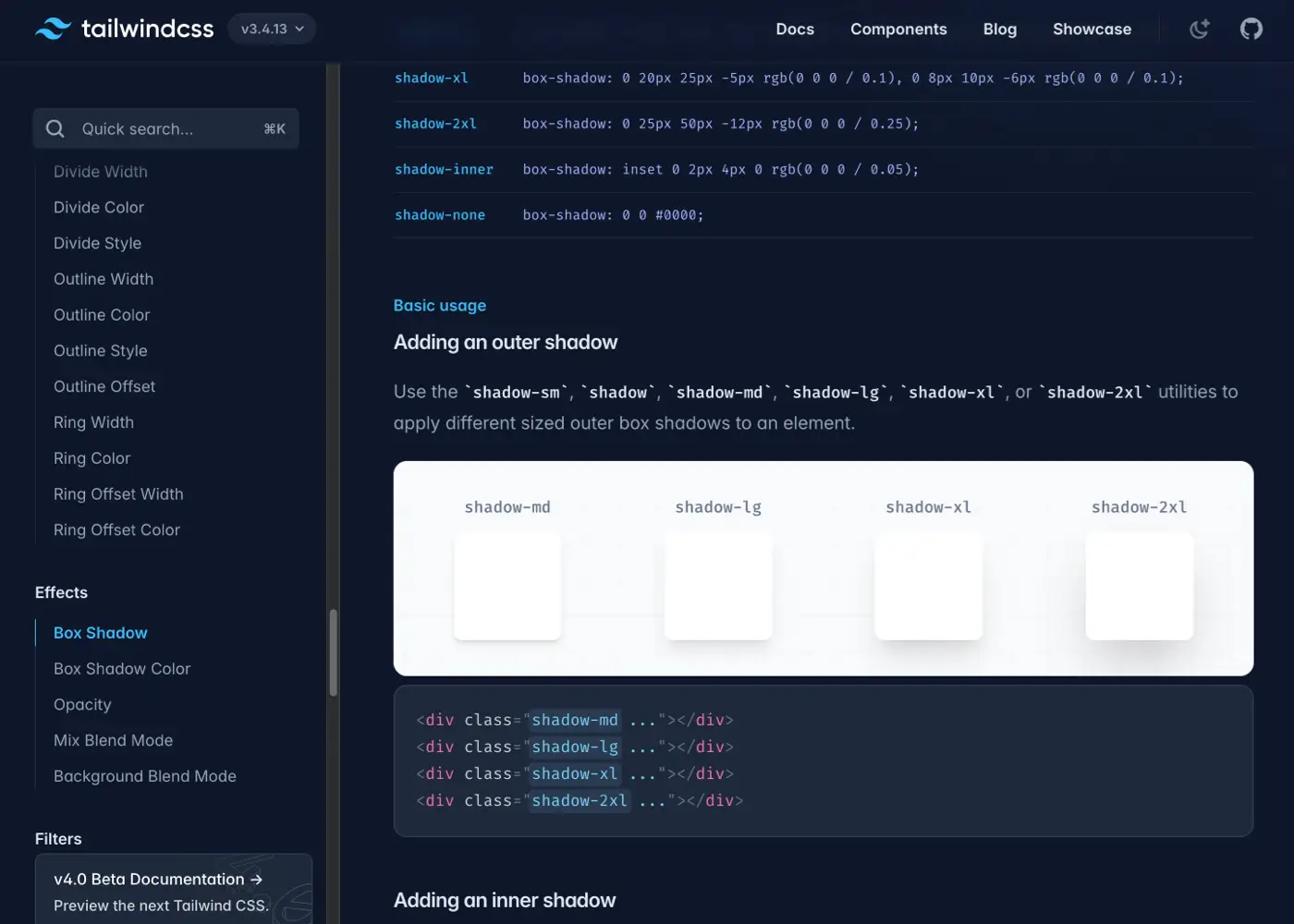
The documentation, especially if you are new to Tailwind CSS, is your best friend. All the features are explained quite well.
If you want to quickly look up a class and see examples, you can.
Intuitive naming
Once you get used to Tailwind CSS, you will understand how class names work. When you do, you can work even faster. Tailwind CSS uses consistent naming conventions.
For example, element sizes are indicated as sm, base, lg, and so on. So, for font-sizes you
have text-sm, text-lg, for border-radius you have rounded-sm, rounded-lg, etc. Like that, there are more
properties that are structurally the same.
Active development & community
Because Tailwind CSS is widely used (over 11 million weekly downloads on NPM at the time of writing this blog), there is also a lot of support. In addition, new versions are continuously released with improved features.
Disadvantages of Tailwind CSS
There is mainly one disadvantage to using Tailwind CSS — and that is that the code can become cluttered if you use a lot of classes. Although you get used to this after a while, it remains not ideal for me.
Conclusion
After using Tailwind CSS for over two years, my conclusion is that I don't want anything else at the moment. Over time, I have become very accustomed to this way of working, which allows me to implement designs relatively fast with Tailwind CSS.


